

Continuing the series on running LLMs locally, in this post we’ll look at an alternative to Ollama that is also widely used in the market, so we can better understand their differences and similarities. In this case, we’ll focus on LM Studio and how it works.
Would you like to check out the previous posts in the series?
What is LM Studio?
Like Ollama, LM Studio is an application for managing LLMs locally, which you can install on different operating systems (macOS, Linux, and Windows) with the corresponding minimum system requirements. Its key features include:
- An application for running and managing LLMs locally.
- A chat interface.
- Search and download models from Hugging Face.
- A local server that listens on OpenAI-compatible endpoints.
Installation
In this case, we run LM Studio using the Linux installation. Once the program is downloaded (you may need to download Chrome and grant execution permissions to the installer using the command chmod +x LM-Studio-0.3.23-3-x64.AppImage), the following command is executed:
./LM-Studio-0.3.23-3-x64.AppImage --no-sandbox
With this, the application will be launched:
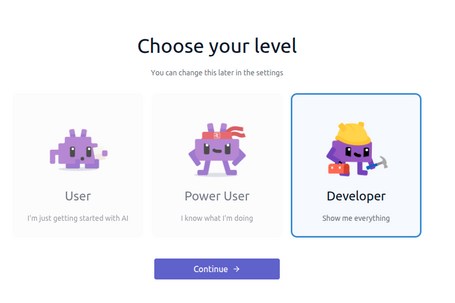
By following the installer steps, you can choose the level of customization you want:
Next, you’ll be presented with the chat interface (if a step to download a model directly appears, it can be skipped):

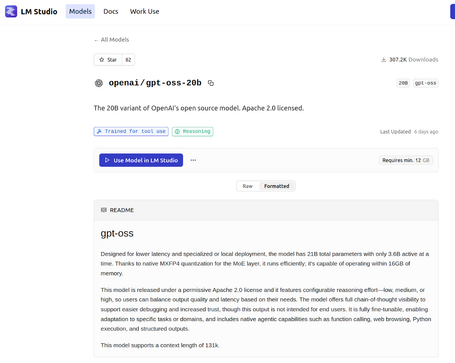
In addition to searching for models within the application itself, the LM Studio website also provides a list of available models, including descriptions and possible configurations:
CLI commands
LM Studio provides a CLI to interact with models via commands. The CLI is one of the sections included in the graphical interface:

Another option is to install the CLI directly on our system so it can be executed from the terminal. This is the option we’ll follow in this article using the Ubuntu operating system. To do so, you need to run the following command:
npx lmstudio install-cli

The commands available in LM Studio are:
- LOAD
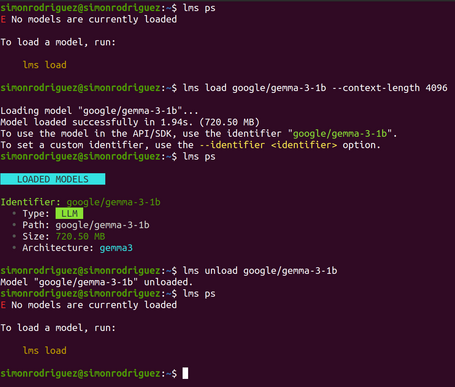
A command that loads a model into memory. You can specify parameters such as context length, GPU disabling, or TTL. It’s important to note that there is no command to directly interact with the loaded model via the CLI; instead, the model is loaded so it becomes available for interaction through the graphical interface.
lms load google/gemma-3-1b

lms load google/gemma-3-1b --context-length 4096

lms load google/gemma-3-1b --gpu off

lms load google/gemma-3-1b --ttl 3600



- UNLOAD
A command that unloads a model from memory. You can specify the --all option to unload all models.
lms unload google/gemma-3-1b

lms unload --all
- GET
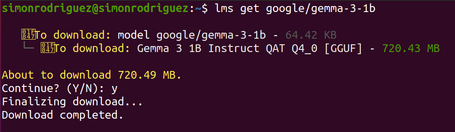
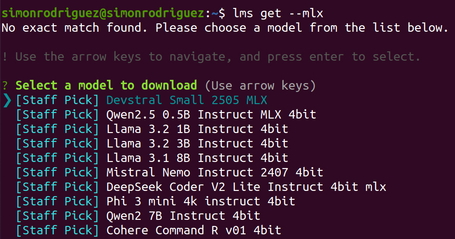
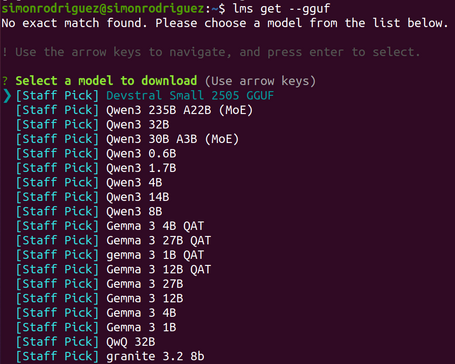
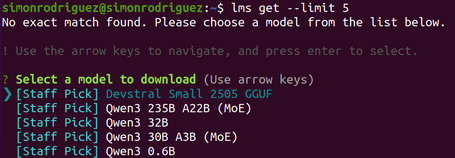
A command used to search for and download models from remote repositories. If no model name is specified, some recommended models are displayed. Downloaded models are typically located in the ~/.cache/lm-studio/ or ~/.lm-studio/models directories.
lms get google/gemma-3-1b

lms get --mlx    # filter by MLX model format

lms get --gguf   # filter by GGUF model format

lms get --limit 5   # limit the number of results
- SERVER START
Command used to start the local LM Studio server, allowing you to specify the port and enable CORS support.
lms server start

lms server start --port 3000

lms server start --cors
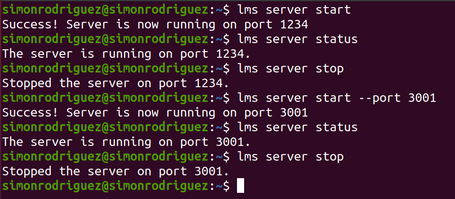
- SERVER STATUS
Command that shows the current status of the local LM Studio server, as well as its configuration.
lms server status

lms server status --verbose

lms server status --quiet

lms server status --log-level debug
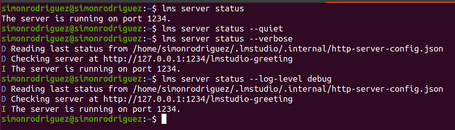
- SERVER STOP
Command used to stop the local server.
lms server stop
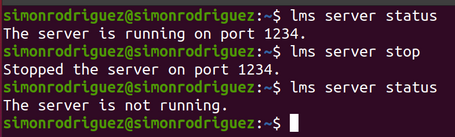
- LS
Command that lists the models downloaded locally, showing information such as size, architecture, and number of parameters.
lms ls

lms ls --llm        # only show LLM-type models

lms ls --embedding  # only show embedding models

lms ls --detailed

lms ls --json
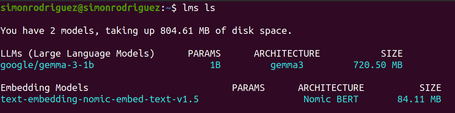


- PS
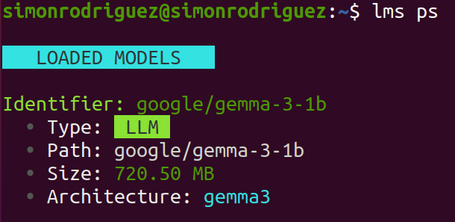
Command that lists the models currently loaded in memory.
lms ps

lms ps --json

- CLONE
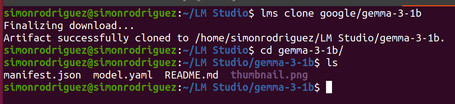
Command used to download the model.yaml files (this file is explained in more detail in a later section), the README, and other metadata files (it does not download the model weights).
lms clone google/gemma-3-1b
- LOG STREAM
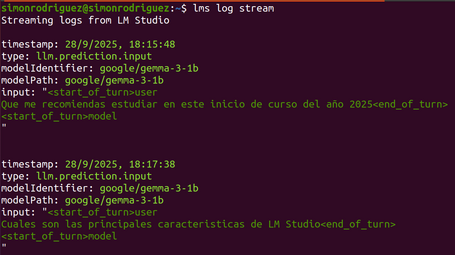
Command that allows you to inspect the prompts that are sent to the model exactly as they are.
lms log stream
- PUSH
Command that packages the contents of the current directory and uploads it to the LM Studio Hub so models can be shared with other users.
lms push
API
As with other tools, there are two types of API endpoints: OpenAI-compatible endpoints and native ones. This functionality is especially important from a developer’s perspective, as it enables integrations with applications.
OpenAI-compatible endpoints
In this case, the available endpoints are:
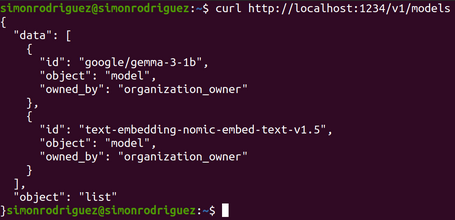
- /v1/models: lists the models that are currently loaded, just like the lms ps command.
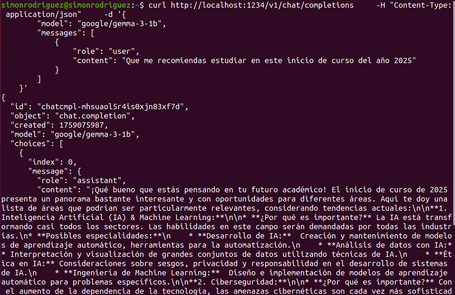
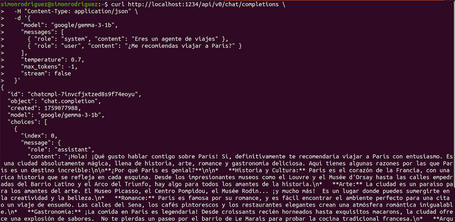
- /v1/chat/completions: sends a chat interaction and returns the assistant’s response. Multiple parameters can be specified, such as temperature, stream, seed, etc.
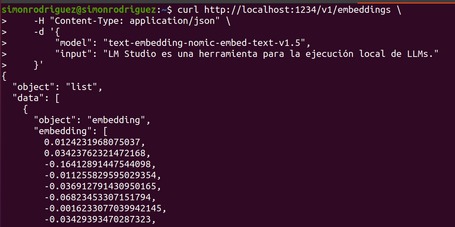
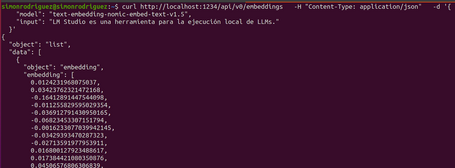
- /v1/embeddings: allows you to obtain text embeddings.
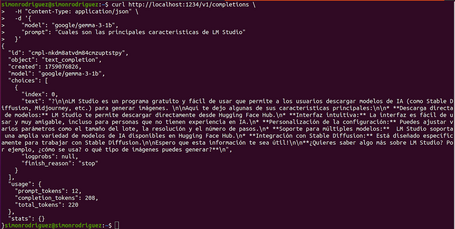
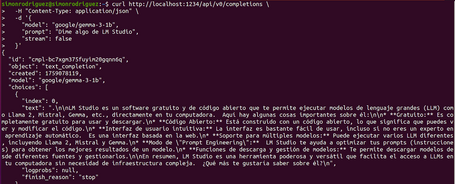
- /v1/completions: returns the model’s response to the user input. This endpoint has already been deprecated by OpenAI, but LM Studio keeps it for compatibility reasons.
Native endpoints
It is important to note that this is a beta feature and requires LM Studio version 0.3.6 or higher. The available endpoints are:
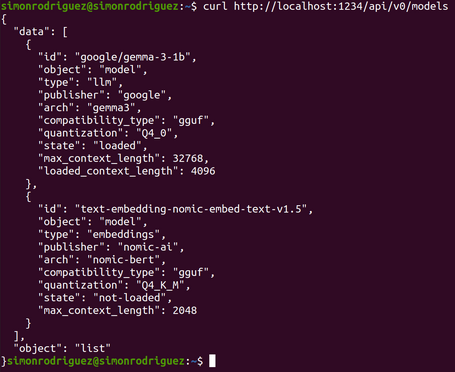
- /api/v0/models: lists loaded and downloaded models.
- /api/v0/models/{model}: returns information about a specific model.
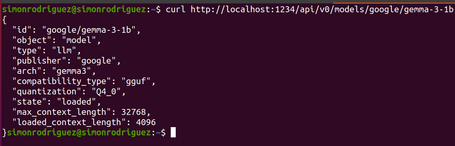
- /api/v0/chat/completions: sends a chat interaction and returns the assistant’s response.
- /api/v0/completions: returns the model’s response to the user input.
- /api/v0/embeddings: allows you to obtain text embeddings.
In addition to the interaction methods described above (UI, CLI, and API), there are SDKs for Python and TypeScript, allowing you to call LM Studio directly using preconfigured methods and functions.
Model.yaml
LM Studio is also building (still in draft form) a centralized and standardized way to manage different models. In this case, it does so through a yaml file, which allows you to describe a model and all its variants, custom metadata, or even custom logic. This approach delegates responsibility to the runtime, which then selects the most appropriate model variant to download and run.
There are several sections for building a model.yaml:
- Model (required): instruction identifying the model in the format <organization/name>.
model: google/gemma-3-1b
- Base (required): points to the specific model files for the referenced “virtual” model. Each entry has a unique key and one or more sources from which the file can be downloaded, which can be:
- A string referencing another “virtual” model.
- An array of model specifications with their corresponding sources.
base:
  - key: lmstudio-community/gemma-3-1B-it-QAT-GGUF
    sources:
      - type: huggingface
        user: lmstudio-community
        repo: gemma-3-1B-it-QAT-GGUF
  - key: mlx-community/gemma-3-1b-it-qat-4bit
    sources:
      - type: huggingface
        user: mlx-community
        repo: gemma-3-1b-it-qat-4bit
- MetadataOverrides: overrides the model metadata. Its purpose is related to showcasing the model’s capabilities (it is not used to make functional changes to the model). The possible fields are:
- domain: model type (llm, embedding, etc.).
- architecture: array with the names of the model architectures (llama, qwen2, etc.).
- compatibilityTypes: array of formats supported by the model (gguf, safetensors, etc.).
- paramsStrings: labels for parameter sizes (1B, 7B, etc.).
- minMemoryUsageBytes: minimum RAM in bytes required to load the model.
- contextLengths: array of allowed context window sizes.
- trainedForToolUse: whether the model supports the use of “tools” (tool-calling). Possible values: true, false, mixed.
- vision: whether the model supports image processing. Possible values: true, false, mixed.
metadataOverrides:
  domain: llm
  architectures:
    - gemma3
  compatibilityTypes:
    - gguf
    - safetensors
  paramsStrings:
    - 1B
  minMemoryUsageBytes: 754974720
  trainedForToolUse: false
  vision: false
- Config: preconfigurations for the model at load time or runtime:
- operation: parameters used during inference/runtime.
- load: parameters applied at load time.
config:
  operation:
    fields:
      - key: llm.prediction.topKSampling
        value: 20
      - key: llm.prediction.minPSampling
        value:
          checked: true
          value: 0
- CustomFields: model-specific configuration fields. The definition includes the following properties:
- key: unique identifier of the field.
- displayName: name shown in the UI.
- description: explanation of the field’s purpose.
- type: data type (boolean or string).
- defaultValue: initial value.
- effects: which effects are applied.
customFields:
  - key: enableThinking
    displayName: Enable Thinking
    description: Controls whether the model will think before replying
    type: boolean
    defaultValue: true
    effects:
      - type: setJinjaVariable
        variable: enable_thinking
For this example to work, the Jinja template must have the enable_thinking variable defined.
- Suggestions: configuration recommendations based on certain UI-focused conditions. The properties to define are:
- message: the text shown to the user.
- conditions: when the suggestion should appear.
- fields: configuration values to apply.
suggestions:
  - message: The following parameters are recommended for thinking mode
    conditions:
      - type: equals
        key: $.enableThinking
        value: true
    fields:
      - key: llm.prediction.temperature
        value: 0.6
I’m sharing here an example of a complete file.
It is important to note that, at the time of writing this post, model.yaml is focused on customizing models to publish them on the LM Studio Hub, so they can later be downloaded (using the lms get command) and used.
Since this feature is currently marked as beta, it is possible that in the future it will work in a way similar to Ollama and its Modelfiles, allowing you to create and run these custom models directly from your own machine, without the need to upload them to a registry or Hub.
Importing external models
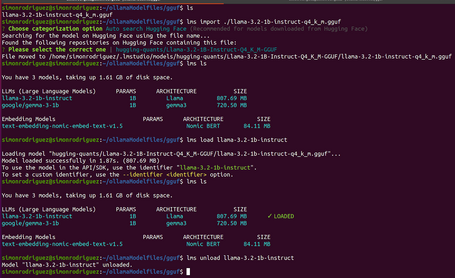
Also in an experimental phase, LM Studio allows importing GGUF-format models that were downloaded outside of the LM Studio ecosystem. To use these models, we first run the import command:
lms import ./llama-3.2-1b-instruct-q4_k_m.gguf
And then we can run it just like any other model already available in the system.
Conclusions
Continuing the series on running LLMs locally, we’ve explored LM Studio as an alternative to Ollama. LM Studio offers a set of features very similar to Ollama’s, while also providing a user interface for model interaction and management, making it a solid option for running LLMs locally.
In the next post, we’ll talk about a third option: Llamafile, and finally about running LLMs locally with Docker. I’ll see you in the comments!
References

Simón Rodríguez
Passionate about science and technology, to which I dedicate a large part of my life, both professionally and personally. Closely connected to backend software development, cloud, and DevOps, but always open to exploring any other existing or future technological fields. Continuously learning about everything around me—technology, people, nature—in order to contribute my small part to this world.
View more of Simón.More thoughts about this.
Read more.
Running LLMs Locally: Getting Started with Ollama.

Deep Learning about Spring AI: MCP Implementation.

Deep Learning about Spring AI: Getting Strarted.

Deep Learning about Spring AI: ETL y MCP.

Comments are moderated and will only be visible if they add to the discussion in a constructive way. If you disagree with a point, please, be polite.

Tell us what you think.