

Closing this series of posts on running LLMs locally, we now arrive at one of the latest players to join the trend of local LLM/AI execution: Docker!
Being one of the latest to arrive does not mean it should be overlooked. Given its track record as a true game-changer—especially when it comes to transparent application execution—Docker has completely revolutionized the development world.
Model Runner is the new tool that Docker has released for running AI models locally, and in this article we will explore its main features.
As a quick reminder, in case you missed any of the previous articles, you can check out the rest of the local LLM execution series here:
- Running LLMs locally: getting started with Ollama
- Running LLMs locally: advanced Ollama
- Running LLMs locally: LM Studio
- Running LLMs locally with Llamafile
How it works and key features
Docker Model Runner enables AI model execution by embedding an inference engine (built on top of the llama.cpp library) as part of the Docker runtime environment. At a high level, the architecture is composed of three main components:
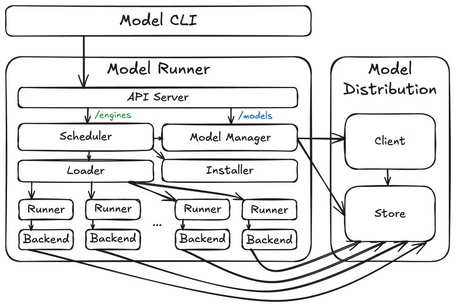
- Model distribution (model storage and client): the model store is the core component of the architecture, where tensor files are stored. The client performs operations (such as downloading) against OCI registries.
- Model Runner: maps API requests to processes that run inference engines (/engines) and models (/models). It includes components such as the scheduler, loader, and runner, which coordinate loading and unloading models from memory (both inference engines and models operate as ephemeral processes). For each combination of inference engine (e.g., llama.cpp) and model (e.g., ai/llama3.2:3B-Q4_0), a separate process is executed depending on incoming API requests.
- Model CLI: the main user interaction component. This is a Docker CLI plugin that provides an interface similar to running Docker images. Under the hood, the CLI communicates with the Model Runner API to execute most operations.
An important note is that, although the overall architecture remains the same, depending on the platform where it is deployed, these three components are packaged, stored, and executed differently (sometimes on the host, sometimes in a virtual machine, and sometimes inside a container).
Some of the main features of Docker Model Runner include:
- Ability to download and upload models to/from Docker Hub.
- Model execution via endpoints compatible with the OpenAI API.
- Packaging GGUF files as OCI artifacts to publish them in any container registry.
- Running and interacting with models directly from the command line.
- Managing local models.
- Defining input prompt details as well as model responses.
- Support for multi-turn interactions (chat).
Installation
Model Runner is available for major operating systems (Windows, macOS, and Linux), either through Docker Desktop or Docker Engine. In this article, we will run Docker Model Runner on Ubuntu using Docker Engine.
After installing Docker Engine if necessary, you can proceed to install Model Runner by executing the following command:
sudo apt-get install docker-model-plugin
Verifying the installation using the command:
docker model version

CLI Commands
Once Docker Model Runner is installed, you can interact with models using the following commands:
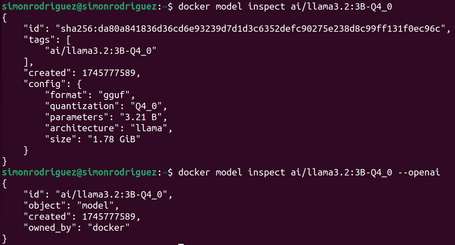
1 INSPECT
This command displays detailed information about a model.
docker model inspect ai/llama3.2:3B-Q4_0

docker model inspect ai/llama3.2:3B-Q4_0 --openai #Presentar la información en formato OpenAI
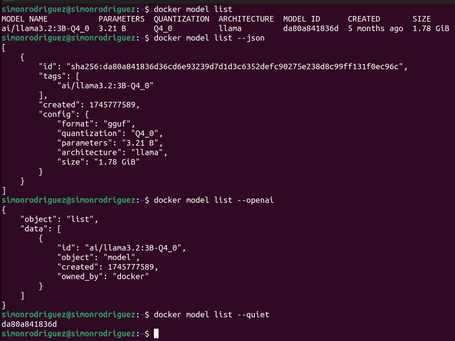
2 LIST
Command to list the models downloaded to the local environment.
docker model list

docker model list --json #List the models in JSON format

docker model list --openai #List the models in OpenAI format

docker model list --quiet #Show only the model IDs
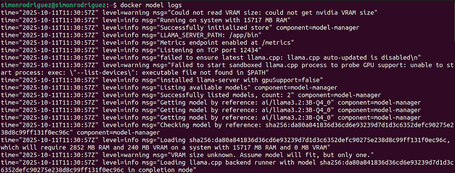
3 LOGS
Command to display logs.
docker model logs

docker model logs --follow#View logs in real time
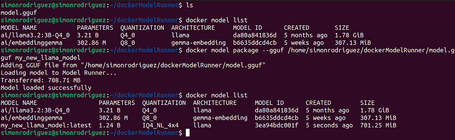
4 PACKAGE
Command to package a file in GGUF format into a Docker Model OCI artifact.
docker model package --gguf <path> [--license <path>...] [--context-size <tokens>] [--push] MODEL

docker model package --gguf /home/simonrodriguez/dockerModelRunner/model.gguf my_new_llama_model
The available options for this command are:
- --chat-template: absolute path to the chat template file (the template must be in Jinja format).
- --context-size: size of the context window.
- --gguf (required): absolute path to the file in GGUF format.
- --license: absolute path to the license file.
- --push: upload to the registry.
5 PULL
Command to download a model from Docker Hub or Hugging Face.
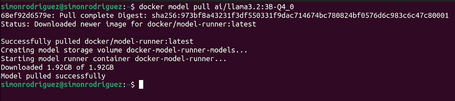
When downloading from Hugging Face, if no tag is specified, it will attempt to download the Q4_K_M version of the model. If this version does not exist, it will download the first GGUF file found in the model’s Files section on Hugging Face. To specify the model quantization, you simply need to add the corresponding tag.
6 PUSH
Command to upload a model to Docker Hub.
docker model push ai/llama3.3
7 RM
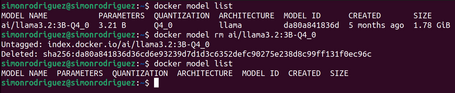
Command to delete local models.
docker model rm ai/llama3.2:3B-Q4_0

docker model rm ai/llama3.2:3B-Q4_0 --force #Force model deletion
8 RUN
Command to run a model and interact with it by sending a prompt or via chat mode.
docker model run ai/llama3.2:3B-Q4_0 #A prompt opens for an interactive chat, which you can exit with the command /bye

docker model run ai/llama3.2:3B-Q4_0 “Hello, what can you tell me about Docker Model Runner?”

docker model run ai/llama3.2:3B-Q4_0 --debug #Enables debug mode

docker model run ai/llama3.2:3B-Q4_0 --ignore-runtime-memory-check #Option to prevent the download from being blocked if the model is estimated to exceed system memory
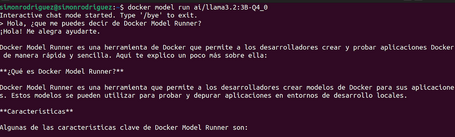
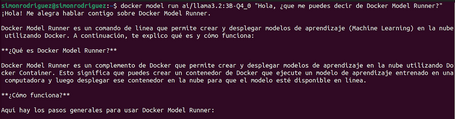
When a Docker model is executed, it calls the API endpoint of the inference server hosted by Model Runner. The model will remain in memory until another model is loaded or the inactivity timeout is reached.
9 PS
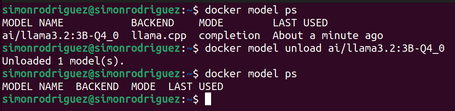
Command that displays the models currently running.
docker model ps

10 UNLOAD
Command to unload a running model.
docker model unload ai/llama3.2:3B-Q4_0
11 DF
Command that displays the disk space occupied by the models.
docker model df

12 STATUS
Command to check if Docker Model Runner is running.
docker model status

docker model status --json #Display the information in JSON format

13 TAG
Command to create a specific tag for a model.
docker model tag ai/llama3.2:3B-Q4_0 quantized-model

If the tag is not specified, the default value is latest.
14 VERSION
Command to check which version of Docker Model Runner is installed on the system.
docker model version

API
Once Model Runner is enabled, API endpoints are automatically exposed (both native Docker Model Runner endpoints and OpenAI-compatible endpoints), which can be used to interact with models programmatically.
When making requests to the exposed API, it is important to consider the origin of the request:
- From other containers: send requests to http://172.17.0.1:12434/. This interface may not always be available for calls from containers. If that is the case, you must include the extra_hosts instruction in the Docker Compose configuration file:
extra_hosts:
  - "model-runner.docker.internal:host-gateway"
With the previous instruction, the API can be accessed through the address http://model-runner.docker.internal:12434/
- From the host: send requests to http://localhost:12434/
Native endpoints
The available endpoints are:
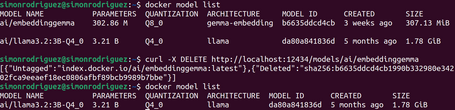
- /models/create (POST): endpoint to download a model.
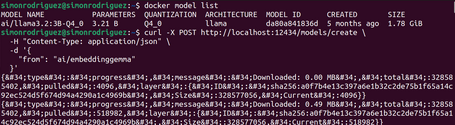

- /models (GET): endpoint to list existing models in the system along with their information.
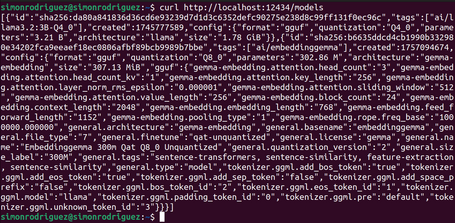
- /models/{namespace}/{name} (GET): endpoint to display information about a model.

- /models/{namespace}/{name} (DELETE): endpoint to delete a local model.
OpenAI-compatible endpoints
The exposed endpoints are:
- /engines/llama.cpp/v1/models (GET): endpoint to list available models in the system.

- /engines/llama.cpp/v1/models/{namespace}/{name} (GET): endpoint to expose information about a model.

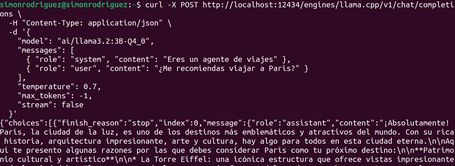
- /engines/llama.cpp/v1/chat/completions (POST): endpoint to send a chat interaction and receive the assistant’s response. Multiple parameters can be specified, such as temperature, stream, seed, etc.
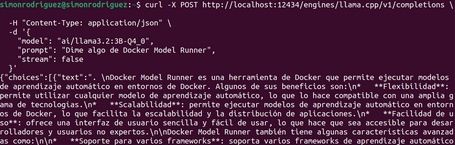
- /engines/llama.cpp/v1/completions (POST): model response to user input. This endpoint is already deprecated by OpenAI.
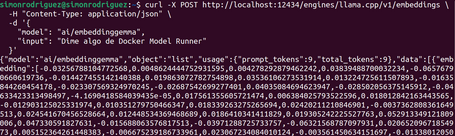
- /engines/llama.cpp/v1/embeddings (POST): endpoint to retrieve embeddings from a text.
Since currently only one inference engine (llama.cpp) is supported, this part can be omitted from the URLs above (for example, /engines/llama.cpp/v1/models becomes /engines/v1/models).

Docker Compose
Docker Compose allows you to define models as core components of your application, so they can be declared alongside services, enabling the application to run on any platform compatible with the Compose specification. To run models in Docker Compose, you need at least version 2.38.0 of the tool, as well as a platform that supports models in Compose, such as Docker Model Runner.
For using models in Docker Compose, the models element has been introduced, which allows you to:
- Declare AI models required by the application.
- Specify configurations and requirements for each model.
- Make the application portable across different platforms.
- Allow the platform to manage the model lifecycle.
The configuration options for the models element are:
- model (required): the OCI artifact identifier for the model. This is what will be downloaded and executed by Model Runner.
- context_size: defines the maximum context window size for the model.
- runtime_flags: list of parameters passed to the inference engine when the model starts. For example, for llama.cpp, the parameters can be found here.
- x-*: extensible properties for platform-specific options.
A simple example of a models definition could be:
models:
  llm:
    model: ai/llama3.2:3B-Q4_0
    context_size: 4096
    runtime_flags:
      - "--temp"                # Temperature
      - "0.1"
      - "--top-p"               # Top-p sampling
      - "0.9"
Services can reference models in two ways:
- Short form: the simplest approach. With this method, the platform automatically generates environment variables based on the model name:
- LLM_URL: URL to access the LLM model.
- LLM_MODEL: identifier of the LLM model.
- EMBEDDING_MODEL_URL: URL to access the embedding model.
- EMBEDDING_MODEL_MODEL: identifier of the embedding model.
services:
  app:
    image: my-app
    models:
      - llm
      - embedding-model

models:
  llm:
    model: ai/llama3.2:3B-Q4_0
  embedding-model:
    model: ai/embeddinggemma
- Long form: with this configuration, the service is explicitly provided with:
- AI_MODEL_URL and AI_MODEL_NAME for the LLM model.
- EMBEDDING_URL and EMBEDDING_NAME for the embedding model.
services:
  app:
    image: my-app
    models:
      llm:
        endpoint_var: AI_MODEL_URL
        model_var: AI_MODEL_NAME
      embedding-model:
        endpoint_var: EMBEDDING_URL
        model_var: EMBEDDING_NAME

models:
  llm:
    model: ai/llama3.2:3B-Q4_0
  embedding-model:
    model: ai/embeddinggemma
Here you can find some configurations for specific use cases of the models element in Docker Compose.
Demo
To see this new models element in Docker Compose in action, we created a simple application to interact with an LLM. The application uses the following components:
- Java 21
- Spring Boot 3.4.4 (with built-in support for Buildpacks to create Docker images for applications)
- Spring AI
- Maven 3.8.5
- Docker version 28.4.0
- Docker Model Runner 0.1.40
- Docker Compose 2.39.4
The application simply exposes a /chat endpoint that receives user input and sends it to the corresponding LLM.
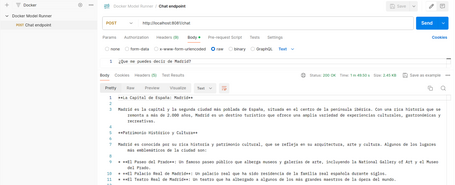
Here you can download the sample application code and the README file with the steps to run it.
Conclusions
In this final post of the series, we explored how to run LLMs with Docker and the ease it provides to integrate them into our applications thanks to Docker Compose integration.
Throughout this series focused on running LLMs locally, we have reviewed the most widely used tools and their particularities, all of which offer core functionalities such as commands and API endpoints to interact with models. Currently, Ollama arguably stands out among the rest in terms of available features and advanced model customization.
Based on what we have seen with Ollama and Docker, will we soon see custom AI models (containerized or not) running in the cloud alongside our microservices? Only time will tell.
References

Simón Rodríguez
Passionate about science and technology, to which I dedicate a large part of my life, both professionally and personally. Closely connected to backend software development, cloud, and DevOps, but always open to exploring any other existing or future technological fields. Continuously learning about everything around me—technology, people, nature—in order to contribute my small part to this world.
View more of Simón.More thoughts about this.
Read more.
Running LLMs Locally: LM Studio.
Running LLMs Locally: Getting Started with Ollama.
Running LLMs Locally with Llamafile.

Deep Learning about Spring AI: MCP Implementation.

Comments are moderated and will only be visible if they add to the discussion in a constructive way. If you disagree with a point, please, be polite.

Tell us what you think.