
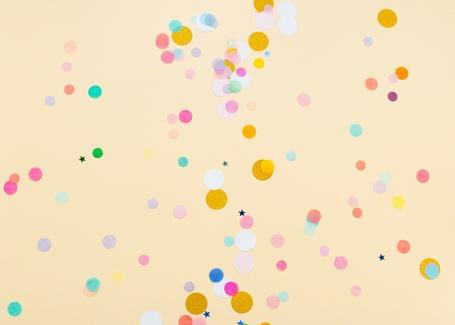
Admit it: you’ve also clicked a “Like” button a thousand times just because it triggered a burst of color or a shower of hearts. I don’t blame you—I’ve done it too. These kinds of microinteractions are what create that satisfying feeling that the interface is alive.
This detail, which might seem trivial, is precisely what separates a well-crafted, thoughtfully designed digital product from a generic, dull application.
That said, there’s no need to overload your website with unnecessary animations. But when you use them in the right place (like on that primary action button), you achieve something very powerful: giving users immediate and satisfying feedback.
And the truth is, creating these kinds of animations is much easier than it seems. So in today’s post, we’ll build, step by step, a particle-based microinteraction for a like button.

What tools are we going to need?
For this project, we’ll use HTML, CSS, and JavaScript, but the real animation engine will be GSAP.
If you haven’t heard of GSAP, it’s one of the most popular tools for animating almost anything on the web. It saves a lot of time (and lines of code) compared to doing it natively.
I’ve prepared a CodePen example so you can try it out and see the final result right away, but we’ll still go through it step by step. You can check it out here: Like Button (GSAP)
HTML Structure: defining the semantic structure of the button
To get started, we’ll set up a basic HTML structure. The most important part here—besides linking our local style and logic files—is importing the required libraries so the particle animation can work properly.
<html>
  <head>
    <meta charset="UTF-8">
    <link rel="stylesheet" href="./style.css">
    <meta name="viewport" content="width=device-width, initial-scale=1.0">
    <title>Like Button</title>
  </head>
  <body>
    <!-- GSAP -->
    <script src="https://unpkg.com/gsap@3/dist/gsap.min.js"></script>
    <script src="https://assets.codepen.io/16327/Physics2DPlugin3.min.js"></script>

    <!-- SCRIPT -->
    <script src="./script.js"></script>
  </body>
</html>
For this effect to work properly, we need to import two key pieces from the GSAP ecosystem:
- GSAP Core: this is the main engine of the library. It allows us to create timelines and manage the basic properties of the elements we’re going to animate.
- Physics2DPlugin: this plugin acts as the physics simulation engine for the animation. It lets us define parameters such as gravity, velocity, and dispersion angle, delegating all the complex mathematical calculations to GSAP to achieve realistic trajectories.
Note: the Physics2D plugin is a premium GSAP tool. In this example, we use it via a specific URL for CodePen usage, but it requires a license if you plan to implement it in a commercial project.
Now, inside our <body> (and always before the <script> tags), we’ll add the button structure.
<button id="like-btn">
  <div id="emitter">
    <svg xmlns="http://www.w3.org/2000/svg" fill="none" viewBox="0 0 24 24" stroke-width="2" stroke="currentColor">
      <path stroke-linecap="round" stroke-linejoin="round" d="M21 8.25c0-2.485-2.099-4.5-4.688-4.5-1.935 0-3.597 1.126-4.312 2.733-.715-1.607-2.377-2.733-4.313-2.733C5.1 3.75 3 5.765 3 8.25c0 7.22 9 12 9 12s9-4.78 9-12Z" />
    </svg>
  </div>
  <span>Like</span>
</button>
In this structure, we’ve defined two important identifiers:
- like-btn: this is the ID of the main button. We’ll use it in JavaScript to listen for the click event and to manage style or text changes when the user interacts with it.
- emitter: this element is essential. It acts as the container for the icon, but its main purpose is to serve as the "origin point" for the particles. By keeping it separate, we can ensure that the explosion starts exactly from the position of the heart, rather than from any part of the button.
CSS Styles: preparing the look & feel and the container
To define the styles, we’ll create a file called style.css. The first step is to import the typography and define a set of CSS variables (Custom Properties). This will allow us to manage colors and reusable values from a single place, making our design much easier to maintain.
@import url('https://fonts.googleapis.com/css2?family=DM+Sans:ital,opsz,wght@0,9..40,100..1000;1,9..40,100..1000&display=swap');

:root{
  --color-bg: #e9ecef;
  --color-primary: #495057;
  --color-accent: #ff3562;
  --color-on-accent: #ffffff;

  --text-sm: 1.1em;
  --text-md: 1.8rem;

  --transition-default: all 0.25s ease;
}
Next, we'll define the global style to clear the margins and center our button on the screen.
*{
  font-family: "DM Sans", sans-serif;
}

body,
html {
  height: 100%;
  margin: 0;
  padding: 0;
  overflow: hidden;
}

body {
  display: flex;
  align-items: center;
  justify-content: center;
  flex-direction: column;
  min-height: 100vh;
    background-color: var(--color-bg);
}
In addition, we'll set up the .particles-container class. Although we'll create this container dynamically in JavaScript, for the sake of code clarity, we'll define its style here:
.particles-container {
  position: absolute;
  left: 0;
  top: 0;
  overflow: visible;
  z-index: 2;
  pointer-events: none;
  opacity: 0;
}
In the .particles-container class, there are a few properties that deserve special attention:
- z-index: 2: the z-index property controls the stacking order of elements along the Z-axis (depth). By default, elements have a value of 1 (or auto). If we want the particles to explode above the button and not be hidden behind it, we need to assign them a higher value—in this case, 2.
- pointer-events: none: this property is key. It prevents the particles from interfering with mouse interactions. This way, even if a particle passes over the cursor, the user can still click the button without any issues.
- opacity: 0: initially, the container is invisible. We’ll only reveal it with GSAP at the exact moment of the animation.
The next step is to define the style of our button. You’ll notice that we make use of the CSS variables defined earlier, which helps keep the code cleaner and more consistent.
We’ll also prepare the .clicked state. This class will be added via JavaScript when the button is clicked, allowing us to modify the style of the button and its inner elements (such as the icon and the text):
button{
  border-radius: 8px;
  cursor: pointer;
  padding: 12px 26px;
  font-size: var(--text-md);
  border: 2px solid var(--color-primary);
  display: flex;
  align-items: center;
  gap: 12px;
  color: var(--color-primary);
  background-color: #e9ecef;
  transition: var(--transition-default);
}

button.clicked{
  border-color: var(--color-accent);
  background-color: var(--color-accent);
  color: var(--color-on-accent);
}

button svg{
  width: var(--text-sm);
  fill: var(--color-primary);
  stroke: var(--color-primary);
  transition: var(--transition-default);
}

button.clicked svg{
  fill: var(--color-on-accent);
  stroke: var(--color-on-accent);
}
Finally, we need to define the particle's appearance. In this example, we've chosen a design featuring circular dots. However, you can customize this style however you like.
.dot {
  position: absolute;
  border-radius: 50%;
}
JavaScript Logic: building the particle system with GSAP
It’s time to take action. Now we’ll set up the logic required for the button to respond to clicks and generate the particle explosion. We’ll manage this entire process from our script.js file.
Step 1. Register GSAP plugins
The first thing we need to do is register the plugin with the GSAP core engine. This is essential so the library can recognize the physical properties we’ll use later.
gsap.registerPlugin(Physics2DPlugin);
Step 2. Declare the elements
In this step, we’ll capture the DOM elements we’re going to interact with. We’ll also take the opportunity to dynamically create the container where our particles will live:
// Main emitter element (used as explosion origin)
const emitter = document.getElementById("emitter");

// Like button + text
const likeBtn = document.getElementById("like-btn");
const text = likeBtn.querySelector("span");

// Container that holds all particles
const container = document.createElement("div");
container.className = "particles-container";
document.body.appendChild(container);
Step 3. GSAP configuration and states
At this point, we’ll define the variables that control the behavior of our animation. What’s interesting about this approach is that, by simply tweaking these values, you can completely transform the effect.
I encourage you to experiment with parameters like velocity or gravity to see how the physics of the motion changes. In addition, in this step we’ll also declare the initial state of the button:
const emitterSize = 2;        // spawn area radius
const dotQuantity = 12;     // number of particles
const dotSizeMax = 12;      // max particle size
const dotSizeMin = 4;       // min particle size
const speed = 0.6;            // initial velocity multiplier
const gravity = 0.1;          // gravity strength

// Toggle state (liked / not liked)
let liked = false;
Step 4. Explosion setup
In this step, we’ll create a reusable function responsible for generating the "explosion" every time it is called. The idea is to build a GSAP timeline that contains the individual animations for each particle.
const explosion = createExplosion(container);

function createExplosion(container) {
  const tl = gsap.timeline({ paused: true });

  for (let i = 0; i < dotQuantity; i++) {

    // Create particle element
    const dot = document.createElement("div");
    dot.className = "dot";

    // Assign random color
    const colors = ["#ff4d6d", "#fb6f92", "#ff8fab", "#ffb3c1", "#cdb4db", "#a2d2ff"];
    dot.style.backgroundColor = colors[Math.floor(Math.random() * colors.length)];

    container.appendChild(dot);

    // Random size & direction (angle in radians)
    const size = gsap.utils.random(dotSizeMin, dotSizeMax, 1);
    const angle = Math.random() * Math.PI * 2;

    // Initial offset inside emitter radius
    const length = Math.random() * (emitterSize / 2 - size / 2);


    gsap.set(dot, {
      x: Math.cos(angle) * length,
      y: Math.sin(angle) * length,
      width: size,
      height: size,
      xPercent: -50,
      yPercent: -50,
      force3D: true,
      scale: gsap.utils.random(0.8, 1.2)
    });

    tl.to(
      dot,
      {
        physics2D: {
          angle: (angle * 180) / Math.PI, // convert to degrees
          velocity: (120 + Math.random() * 200) * speed,
          gravity: 500 * gravity
        },
        duration: 1 + Math.random()
      },
      0
    )
    .to(
      dot,
      {
        opacity: 0,
        scale: 0.5,
        duration: 0.3,
        ease: "power2.in",
      },
      0.3
    );
  }

  return tl;
}
In this function, there are a few technical concepts we need to understand:
- Creation loop. We use a
forloop based on thedotQuantityvariable to generate all particles at once. Each one gets a random color and size so the explosion doesn’t look artificial or repetitive. - Trajectory calculation. We use mathematical functions (
Math.cosandMath.sin) to position the particles in a circle around the center point. This allows them to shoot out in all directions (360 degrees). - The power of Physics2D. Instead of manually animating the
xandycoordinates, we simply pass an angle, velocity, and gravity to the plugin. GSAP takes care of drawing the perfect parabolic motion. - Synchronization (position parameters). You’ll notice that the
.to()functions include a0or a0.3at the end. In GSAP, this is called a Position Parameter.
- The "0": forces all particles to start their animation exactly at second zero on the timeline. Without it, particles would appear one after another; with it, they all fire simultaneously, creating the explosion effect.
- The "0.3": indicates that the particle should start fading out (opacity 0) when the timeline reaches 0.3 seconds, allowing it to disappear while still moving, resulting in a much smoother and more natural effect.
Step 5. Explosion function
Once we have the animation logic ready, we need a function that positions the particle container in the correct place and triggers the movement. Without this step, the particles might appear in a corner of the screen instead of originating from the center of the button.
function explode(element) {
  const bounds = element.getBoundingClientRect();

  // Move container to element center
  gsap.set(container, {
    x: bounds.left + bounds.width / 2,
    y: bounds.top + bounds.height / 2,
    opacity: 1
  });

  // Restart animation from the beginning
  explosion.restart();
}
This function is responsible for positioning the effect in space: first, we use getBoundingClientRect() to calculate the exact coordinates of the button on the screen, and then, using gsap.set(), we instantly move the particle container to its center.
Finally, we execute explosion.restart() so the animation timeline resets and plays from the beginning with each new click, ensuring the explosion always originates from the correct position.
Step 6. Click event and final interaction
To wrap up, we need to detect when the user interacts with the button and trigger all the logic we’ve implemented. With the following code, we handle the state change, visual update, and particle launch:
likeBtn.addEventListener("click", () => {

  // Toggle like state
  liked = !liked;
  text.textContent = liked ? "Liked" : "Like";

  // Toggle active class (for styling)
  likeBtn.classList.toggle("clicked", liked);

  // Button press animation (quick scale feedback)
  gsap.fromTo(
    likeBtn,
    { scale: 1 },
    { scale: 0.9, duration: 0.1, yoyo: true, repeat: 1 }
  );

  // Trigger particle explosion
  liked && explode(emitter);
});
In this final block, two key things happen:
- Tactile feedback: using
gsap.fromTo, we create a real press sensation by slightly scaling the button. The use ofyoyo: truemakes the button automatically return to its original size. - Conditional logic: thanks to the
&&operator, theexplodefunction only runs when the user hits "Like", preventing particles from triggering when the action is undone.
I hope this post has helped you better understand how these kinds of effects work and that, from now on, you feel confident enough to implement your own particle animations to add a touch of “magic” to your interfaces. Time to experiment!

Vanessa Davo Parreño
I’m a multimedia engineer working as a software developer and UI/UX designer. I see technology as a tool to build more just, equitable, and accessible spaces. I’m a creative and curious person, so I love continuously learning, especially when it comes to exploring new ways of creating.
View more of Vanessa.More thoughts about this.
Read more.
A summary of Spainjs – An international javascript conference in Madrid.

Jotai: simplifying state management to an “atomic” level.
Target Size: The Great Overlooked Aspect of Accessibility.

if() in CSS: a key tool for frontend development.
Comments are moderated and will only be visible if they add to the discussion in a constructive way. If you disagree with a point, please, be polite.

Tell us what you think.